
How to Add Staff Names to a Report?
What are Staff Names?
For privacy reasons, Shopify does not provide the names of the staff member(s) who processed an order at your store.
They do however provide the Staff ID, a unique 10 digit or so number that corresponds to each individual staff account at your store.
We can use this ID to map to the Staff Names by following this process below.
Note - You must be on a paid plan of Report Toaster to have access to this feature. You can signup at any time by following the directions here.
Setting up Staff Name
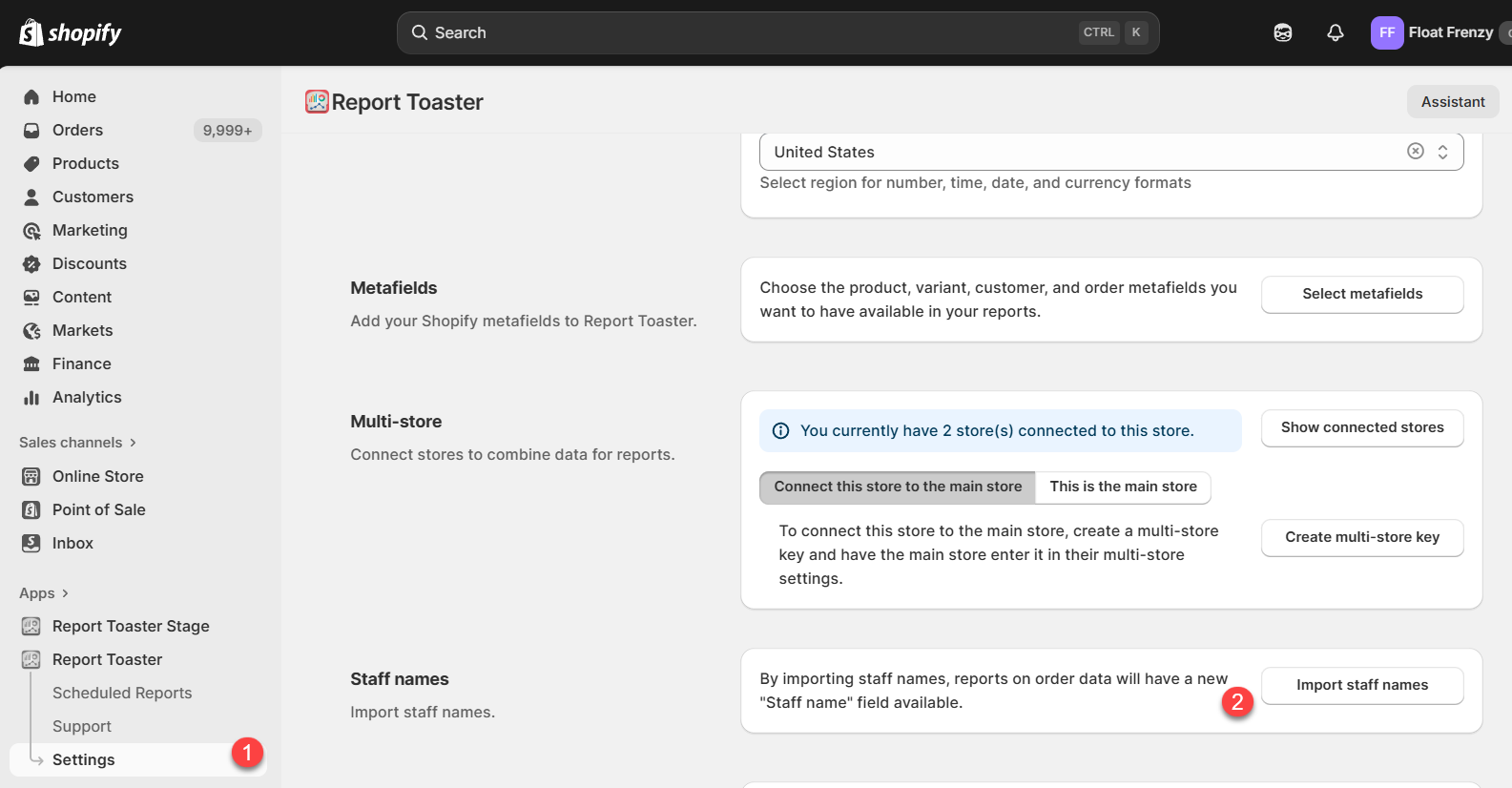
Start by going to the Settings menu in the left-hand pane. Under Staff names, click Import staff names:
(click image to enlarge)
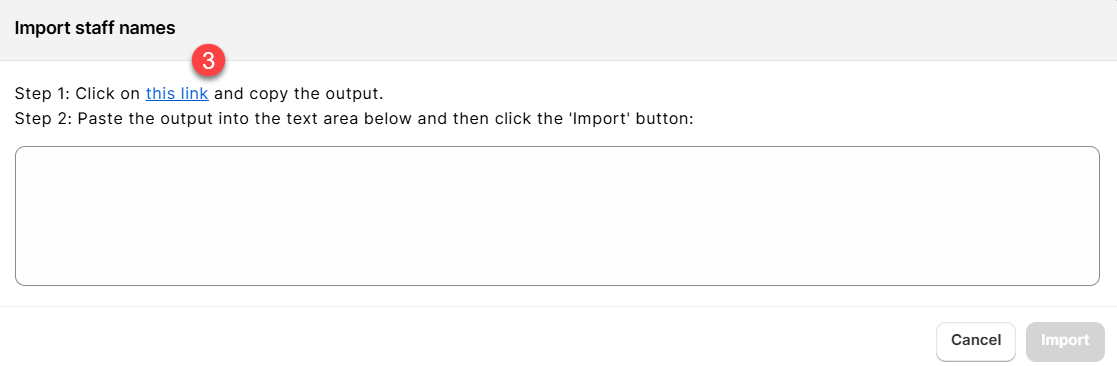
You'll then see the following popup dialog box - click where it says this link.
(click image to enlarge)
This will open a new tab and you'll see a page (roughly) like this.
Don't worry - this is nothing scary, just a JSON version of the users page in your Shopify store:
(click image to enlarge)
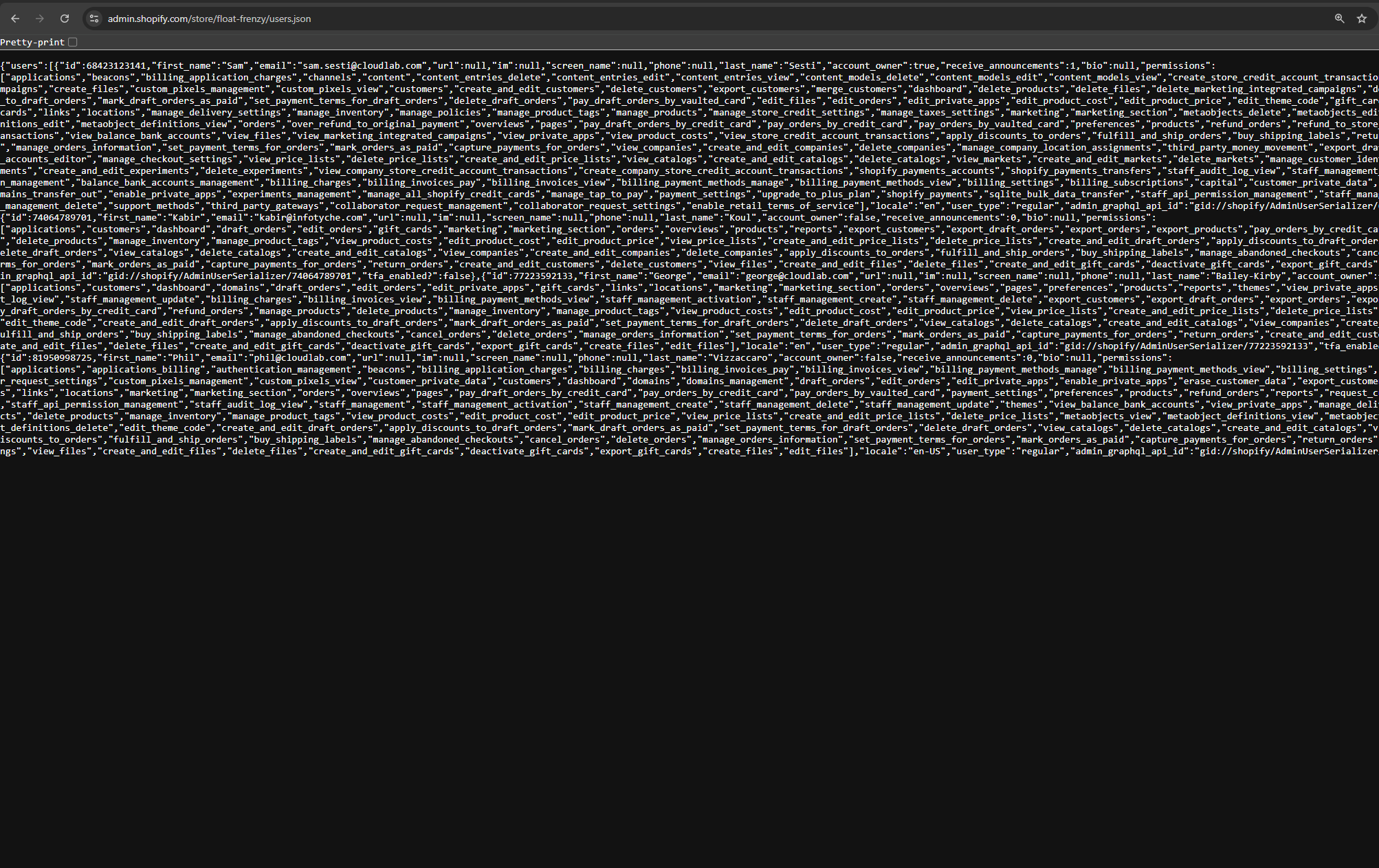
Select and copy ALL of the text on this page.
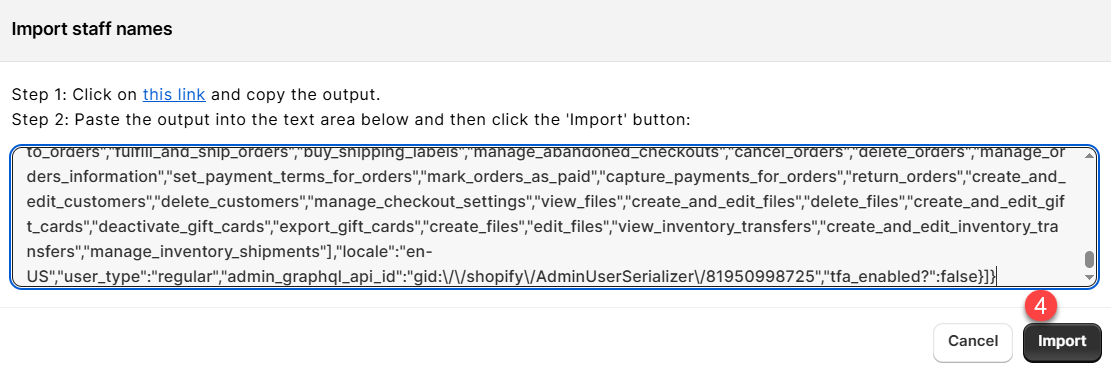
Then return to that dialog box, paste all of the text in the box, and click the Import button:
(click image to enlarge)
Using Staff Name in a report
Once complete, this will automatically create the following custom fields for your account:
- Staff Name (on Orders, Sales, and Transactions)
- Attributed Staff Name (on Orders and Sales)
**Note that on Transactions there are actually 2 fields created here - the staff name associated with the Order and
the one associated with the Transaction (Payment).
Shopify gives us 2 IDs and usually we've seen they match,
but just in case they don't, we thought it best to provide both options!
You can then include these like any other column or filter in a report.
**If a staff name is still displaying as blank after completing this process, then there's a good chance that the
staff account no longer exists.
(e.g. a sale happened and then the account for that staff member was
removed).
Feel free to contact us at [email protected] and we'd be glad to add any that
are missing manually to the field.
All you need to do is just give us a list of any IDs with the corresponding
names (see here) and we'll do the rest.
For other articles in our Basic Guides series, check out our main section here.